 Ironstone
A good handover is short and leaves nothing for the owner to guess. You check the website once more on a phone, then send one approval link the owner pays through, and it goes live in a few minutes. The owner connects their own domain from their login, and it stays theirs. Then you point the map listing to the new website, show the owner how to ask for changes, send a short handover note and put two check-ins in your calendar. This guide walks through each step, with templates.
Key facts
- Of the 56 businesses with a gap that Lead finder, our business lookup tool, showed partners between October 8 and November 17, 2026, 7 had a website without a secure connection, by our own records, with our own accounts left out. 1
- ICANN says a registrar may deny a domain transfer within 60 days of the domain's first registration. 2
- Google says it can take a few weeks for it to notice a new site or changes to an existing one. 3
- Google's web.dev says a page should answer a tap or click within 200 milliseconds for a good user experience, a measure it calls Interaction to Next Paint. 4
What a website handover includes
A website handover includes a last check on a phone, approval and payment through one link, the website live at the owner's own domain, the map listing updated, the owner's login and a handover note. It's the moment the website becomes theirs: live, paid for, at their own address, with a person to call. No passwords or files need to change hands. The checklist below covers everything, and each item has its own step.

- A last check of every fact on a phone
- Approval and payment through one link the owner opens
- The website live at its own address
- The owner's own domain connected and secure
- The map listing pointing to the new website
- The owner's login and how to ask for changes
- A short handover note the owner can keep
- Two check-in dates in your calendar
ICANN says a registrar may deny a domain transfer within this many days of the domain's first registration. If the owner bought their domain recently, plan to point it at the new website instead of moving it. 2
Of the 56 local businesses with a gap that Lead finder, our business lookup tool, showed 6 partners between October 8 and November 17, 2026, with our own accounts left out, 7 had a website without a secure connection. Treat that as a handover point, not a sales tip: before the owner gets the address, check that the new website opens with a secure connection, the way the handover checklist does. 1
Google's web.dev says a page should answer a tap or click within this much time for a good user experience, a measure called Interaction to Next Paint. Before you hand over the website, tap through it on a phone and make sure every button responds right away. 4
Tip
Do the whole handover in one sitting if you can. A half-finished handover is the one owners remember.
How to hand over a website in 8 steps
These eight steps start the moment an owner says yes. They're the last part of our guide to selling AI websites to local businesses, and the start of looking after the client every month. Take them in order.
1. Do the last check on a phone
Within a day, the owner will show the website to their staff, family and customers, and they'll do it on a phone. One wrong phone number or last year's holiday hours is what they'll remember. So check every fact against what the business published or told you. Nothing on the website should come from anywhere else.
Open the website on your phone the way a customer would. Tap the phone number, check the hours with holidays included, send yourself a test message through the contact form and read every price and name out loud. Then run the address through PageSpeed Insights to see how it does on a phone.
Check the photos last. Photos are the part people skip, because they look fine at a glance. Use the owner's own photos or ones you have the right to use. If you're unsure about one, take it out. It's quicker to remove it now than to explain it later.
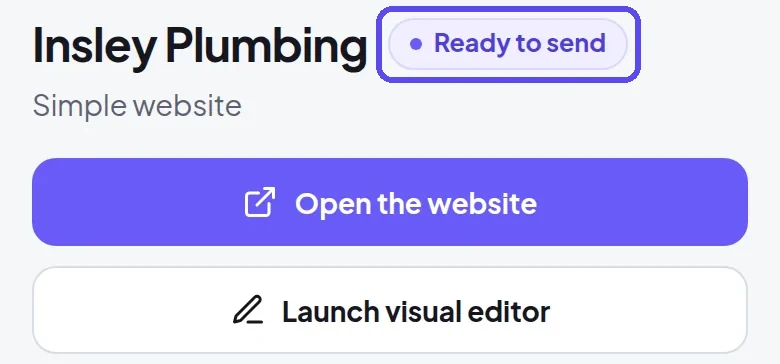
- The phone number calls the business when you tap it
- The hours match what the business says, holidays included
- A test message reaches you through the contact form
- Every price and name read out loud
- Every photo is theirs or one you may use
You know it worked when you'd hand your own phone to the owner with the website open. You wouldn't worry about what they find, because you've already checked every line on it.
Tip
Ask someone who hasn't seen the website to find the hours and call the business from it. A fresh pair of eyes finds what you've stopped seeing.
2. Get approval and payment through one link
When the owner says yes, send them the approval link by text or email. It opens a secure card payment page in your name, with your monthly price and any setup fee. Paying is their approval of the exact website they saw, and the app records the date, the time and the version they approved, so you both have a clear record.
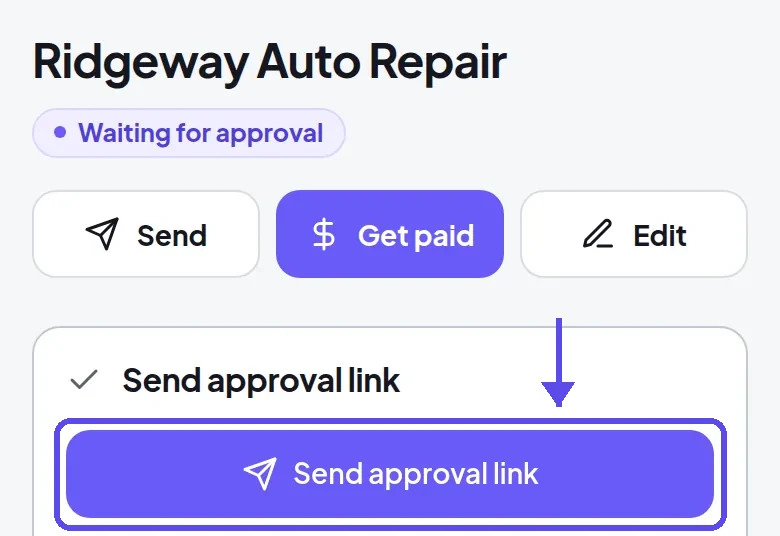
Nothing goes live before they approve. If they never approve, the website goes offline 30 days after it was built. If the owner is ready, send the link while you're still with them. A yes often cools by the next day.
The approval message
Thanks, [Their name], here's the link to approve [Business name]'s website: [Approval link]. It shows the website and the monthly price we agreed. Once it's approved, it goes live within minutes, and I'll send a short note with everything you need.
- The link sent while the yes is fresh
- The price on the page matches what you said
- Your bank connected before you send the link
- The owner knows it goes live within minutes
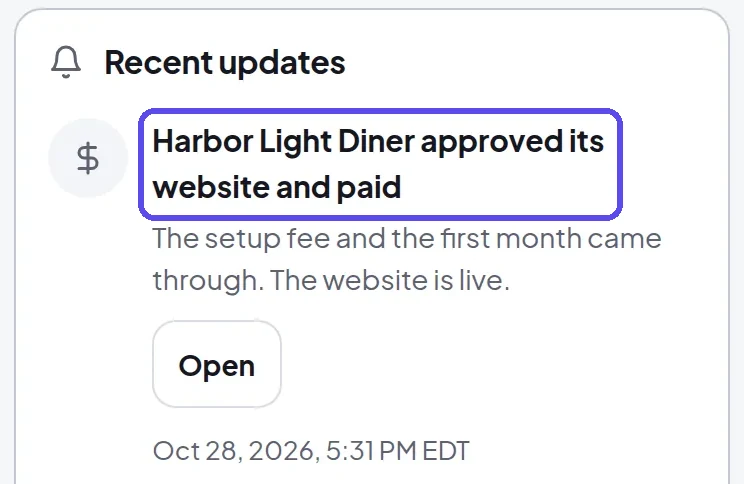
- The paid notification arrives in your app
Tip
Tell the owner what they'll see after paying before they tap the link. An owner who knows what comes next doesn't stop halfway to call you.
3. Go live and connect the owner's domain
After payment, the website goes live at its address in a few minutes. If the owner has a domain, they connect it from their own login. It shows the one record to add at their domain provider, then checks it until the website is live with a secure connection. The domain stays the owner's.
In many cases, the record you'll add is a CNAME record for the www address. The owner's login shows the exact values, so there's no guessing. If the owner gets stuck, ask them for a screenshot of the records at their domain provider. Then compare it line by line with the values in their login. Never ask for their password. The owner stays signed in to their own account, and your job is to help them read what's on the screen. That way the domain stays theirs, and nobody has to trust anyone with a login.
Usually nothing needs to move. The domain stays at the owner's own provider and in their name. Only one record changes, so the owner keeps control even if they ever leave you. Tell them that early, so the word domain doesn't worry them.
Domain instructions
Hi [Their name], to put the website on [your domain], sign in to your login at [login link] and open the domain step. It shows one record to add where you bought the domain. Once it's added, the login checks it and the website appears at your address with a secure connection. If you get stuck, a screenshot of your records is all I need, never your password.
- The website live at its address on your phone
- The one record added at the owner's provider
- The secure connection shows in the browser
- Both the www and bare address checked
- The domain is still in the owner's name
You know it worked when you type the owner's own address on your phone and it opens the new website with the lock in the address bar. The domain is still theirs, too.
Tip
Write down the name of the owner's domain provider in your notes for that client. If the domain ever needs a change, you'll know where to look without asking again.
4. Point the map listing to the new website
Many customers find a local business on the map before anything else. If the Website button on the owner's Google Business Profile still points nowhere, or to an old page, the new website never gets the visits. So this step matters as much as the website itself. It takes about five minutes with the owner.
The by-hand way works best in person. Sit with the owner and have them sign in to their Google Business Profile on their phone. Put the new address in the website field, then check the hours and phone number while you're there. Wrong hours send customers to a locked door. The owner signs in, not you. Never ask for their password, even if they offer it. You can point at the screen and tell them what to tap, and the account stays in their hands.
Update the hours on the listing and the website the same day. Customers trust whichever one they see first, so the two should always match. When the owner changes their hours, ask them to tell you, and you change both together.
Updating the map listing
Hi [Their name], your website is live at [website address]. Next is your map listing: when you have five minutes, I can sit with you while you put the new address in the website field. It's the button many customers tap first.
- The Website button opens the new website
- The hours match the website exactly
- The phone number matches the website too
- The owner signed in, not you
- Holiday hours added before the next holiday
You know it worked when you search the business on a map and see the right hours. The Website button opens the new website, not an old page or nothing at all.
Tip
Ask the owner to add a few fresh photos to the listing while you're there. A listing with recent photos looks cared for, and it matches the new website.
5. Set up the owner's login and changes
The owner signs in on your storefront with their email and a sign-in code. There's no password. From there, they ask for a change in plain words, attach photos, update their card and see their billing. They also see their visits, calls and messages. You get each request in your account.
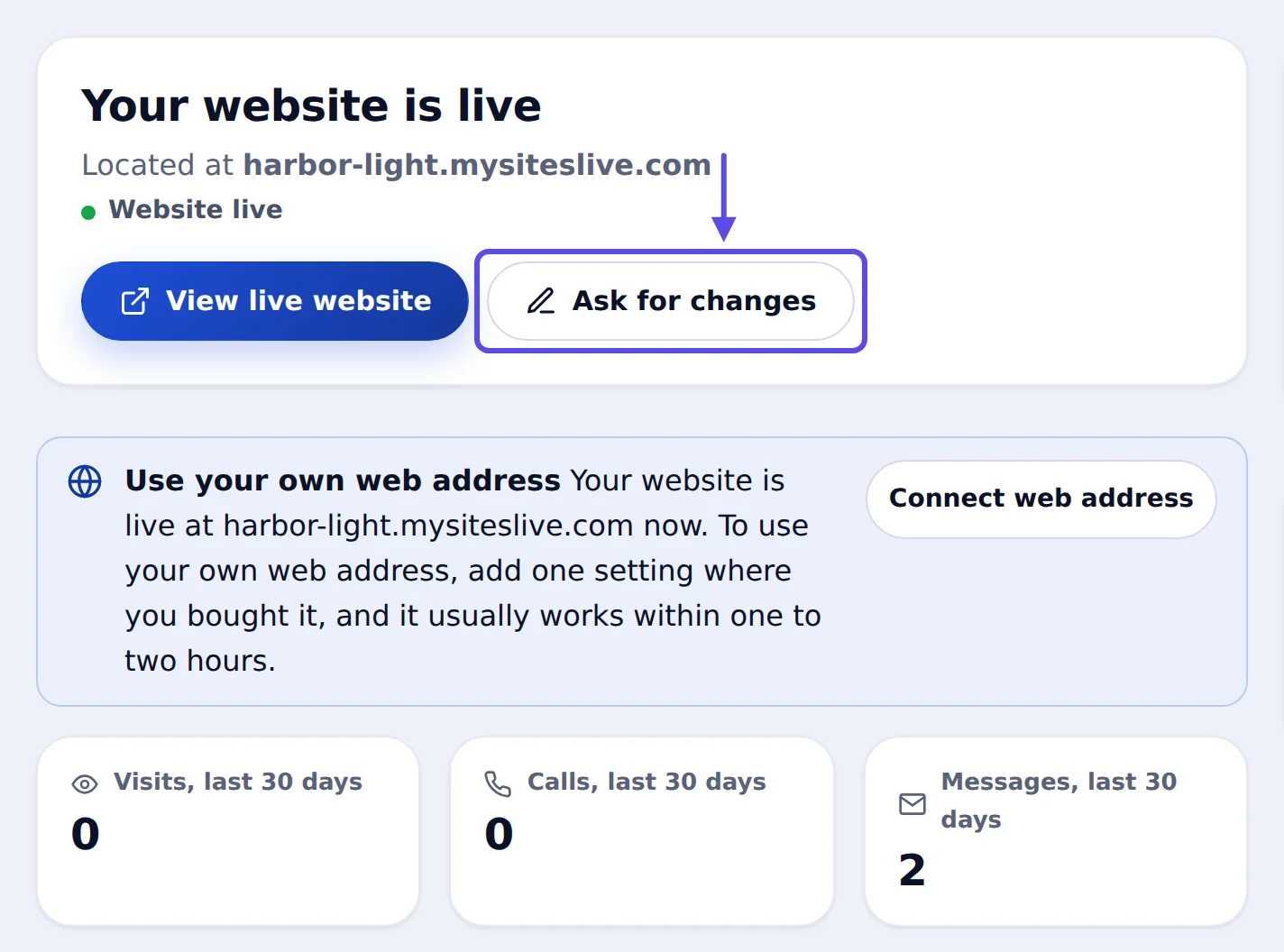
You choose the owner's level of control. You can manage the website while they ask for changes. They can edit text and photos themselves. Or their edits can wait for your approval. Every change is in the website's History and can be undone in one tap. So a mistake is never a big deal.
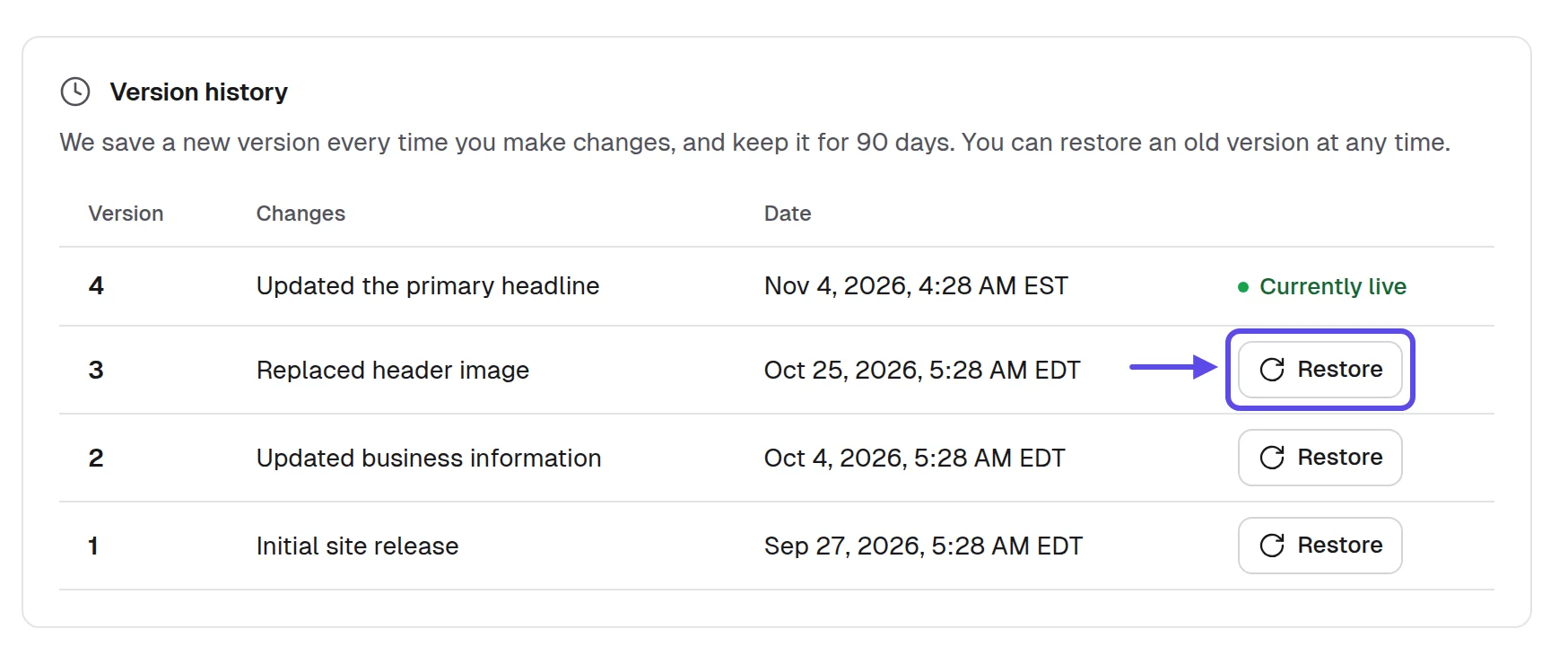
For an owner who isn't comfortable online, choose you manage, they ask. They text you a change and you make it. The login is still there when they want it. Don't push it. Some owners would rather send a text than learn a new screen, and that's fine.

- The owner can sign in with their email
- The level of control chosen for this owner
- One change request sent and made together
- The owner knows where customer messages arrive
- You know how to undo any change
You know it worked when the owner has signed in once, asked for one change and seen it on the website. After that, the login isn't new to them anymore. It's theirs.
Tip
Choose the level of control by asking how the owner likes to get things done, not by guessing. Someone who texts all day may never open the login, and that's a fine answer.
6. Walk the owner through it in five minutes
Owners don't read manuals. They're busy running a business, and a page of instructions ends up in a drawer. Five minutes together teaches more. Sign in with them, ask for one change and watch it show up on the website. Once they've done it with you, it isn't new anymore.
If you can't meet, send a link from Calendly for a five-minute call. Or record a short video with Loom that shows the sign-in and one change request on their own website. They can watch it again later, as many times as they like.
The five-minute walk-through
Let's sign in together. It sends a code to your email, so there's no password to remember.
Now type one thing you'd like changed, in your own words, and send it. I'll make it while we're talking.
- Sign in together on the owner's phone
- One real change asked for and made
- Show where messages from customers appear
- Show them how to update their card
- A short video they can watch again
You know it worked when the owner asks for their next change on their own, from the login or by text. They don't need to call you first to ask how.
Tip
Ask the owner to make the change themselves while you watch. Doing it once with you beside them teaches more than watching you do it.
7. Send the handover note
One short message the owner can keep saves a call later. It holds the address, how to sign in, how to ask for changes, what the monthly price covers and how to reach you. Owners lose track of these things, and that's normal. The note means they don't have to remember any of it.
Keep a copy of every handover note in Google Docs, with one page per client. Put the date the website went live at the top. Under it, write down what you told the owner and what you walked them through. When the owner calls in six months with a question, you won't be digging through old texts and emails. Everything you told them sits in one place. You can open their page, read it back and answer while they're still on the phone.
The handover note
Your website is live at [website address].
To sign in, go to [login link] and enter your email. A sign-in code arrives by email, so there's no password to remember.
To change anything, use Ask for changes in your login or text me, and I'll make it.
The monthly price covers the website, its hosting and your changes. You can cancel at any time from Billing.
Your domain stays yours, whatever happens.
[your name], [your phone]
- The website address and the login link
- How to sign in without a password
- How to ask for a change, in plain words
- What the monthly price covers and how to cancel
- Your name and phone number, at the bottom
You know it worked when the owner never calls to ask how to sign in or where to send a change. The answer is in the note, and they know where to find it.
Tip
Send the note the same day the website goes live, while the handover is fresh. An owner who gets it a week later has already started guessing.
8. Check in after a week and a month
The first change made fast sets the tone for the whole relationship. A call a week after launch, and another a month later, catches anything the owner would change and any calls that came from the website. Many owners won't call to say something's wrong. They wait and wonder. A short call from you ends the wondering.
Put both check-ins in Google Calendar the day the website goes live. Add the owner's name and phone to the event, so you can call from the reminder. Set them now, while the date is fresh, not later when you're busy with the next client.
The one-month call is also the moment to ask who else they know. A happy owner's introduction is the best way to find web design clients, and it costs nothing but the question. Ask once, plainly, and let them think about it.
The one-week check-in
Hi [Their name], checking in now that [Business name]'s website has been live for a week. Let me know if there's anything you'd like changed, or anything customers have said about it. I'm happy to make changes the same day.
Asking for an introduction
Hi [Their name], I'm glad the website is working for [Business name]. I'm looking for one or two more local businesses to build for, like the shop next door. If you mention me, I'll make that business a website first so they can see it. Thanks either way.
- A call one week after launch
- A call one month after launch
- The first change made the same day
- One question about who else they know
- Notes from each call in their page
Tip
Open each check-in with a question about their customers, not about the website. What customers said tells you more than whether the owner likes the design.
When the client had a website before
When the client had a website before, the new website goes live and the domain points to it first, and only then does the owner cancel the old hosting. Get it backward and customers find a blank page. The old website needs a careful goodbye, and the order matters.
The one record for the website usually leaves the owner's email alone. Email uses its own records at the domain provider. Say so before they worry. Then check that a test email still arrives after the switch. Send it from your own address to theirs, and ask them to reply so you know it went both ways.
- Keep the domain itself; cancel only the old website's hosting, and only once the new website opens with the lock at the domain
- Check the owner's email still works the day after the switch
- Save the old website's words and photos the owner wants: copy the text into Google Docs and right-click to save each photo
- Tell the owner when the old login stops working, so they save anything else from it before that date
- Update any printed cards or signs that show an old page address
Write down the date when the old hosting renews. Owners often forget a yearly charge for a website they no longer use. A reminder from you, before it renews, is remembered kindly. Once the email test passes, the owner signs in to the old host's account and cancels the hosting from its billing page.

Who owns the website after handover
After handover, the business owns its domain and its content, and the website runs on your service for as long as the business pays you each month. The owner can cancel at any time. The business sees your name and brand, never ours. To the owner, you're the web designer from day one, and that's how it should be.
The owner can download their own content from their login: their words, photos, logo, hours and prices. If a card payment fails, reminders go out in your name. The website stays online for 14 days while the card is retried, and you can choose to keep it live longer.
Tip
Tell the owner on day one that the domain is theirs. Owners who know they can leave are the ones who stay.
Handover mistakes to avoid
These are the slips that turn a happy yes into a worried call a week later. Each one is avoidable. The steps above cover the fixes, and the domain slip gets its fix right here in the list. Read them as a list of what not to do on handover day.
- Asking for the owner's passwords instead of letting them sign in themselves
- Registering the owner's domain in your own name. If they have none, sit with them while they buy one under their name.
- Leaving old hours on the map listing after the website goes live
- Going live with a fact nobody checked on a phone
- No handover note, so the owner calls to ask how to sign in
- A first change that takes a week instead of a day
- No check-in, so the first you hear is a cancellation
How to know the handover worked
A few signs in the weeks after tell you the handover worked. Look for them at your two check-in dates, and jot what you see in a simple sheet with one row per client. They're signs, not targets, so don't put numbers on them. If changes keep coming faster than you planned, look again at what to charge new clients.
- The owner asks for changes from the login on their own. If they never do, walk them through it once on a call.
- Messages from the contact form reach the owner. If they don't, send a test and check the email address on the form.
- The map listing and the website show the same hours. If they don't, ask the owner which is right and update both.
- The second payment arrives without a reminder from you. If it needs one, send a short, friendly note and check the payment link works.
- The owner mentions you to another business they know. If not, ask at your second check-in whether they know anyone who needs a website.
Frequently asked questions
What should a website handover include?
A good handover includes a last check on a phone, approval and payment, the website live, the domain connected and the map listing updated. It also covers the owner's login, how to ask for changes and a short note with how to reach you. Then put two check-ins in your calendar.
Who owns the website after handover?
The business owns its domain and its content, like its words, photos, logo, hours and prices, and can download that content from its login. The website runs on your service and stays live while the business pays you monthly, and the owner can cancel at any time.
How do I transfer a domain to my client?
Usually nothing moves, because the domain stays at the owner's own provider and in their name. The owner adds one record using the values shown in their login, the login checks it, and the website appears at their address with a secure connection.
Should I keep control of the website until the client pays?
Yes: nothing goes live until the owner pays through the approval link, and that payment is their approval of the exact version they saw. Before that, they can look over every page of the finished website at its link, at their own pace.
How do I teach a client to use their website?
Use a five-minute call or a short video where you sign in together, ask for one change and see it show up on the website. Then send a short handover note, so they can look up the address, the sign-in and how to reach you later.
What happens if a client stops paying?
If a card payment fails, reminders go out in your name, and the website stays online for 14 days while the card is retried. After that, it goes offline until they pay, unless you choose to keep it live longer.
What if the client already has a website?
The new website goes live first and the domain points to it, and only then does the owner cancel the old website's hosting, never the domain. The website's record usually leaves their email alone, but send a test email after the switch to be sure.
Sources
- Ironstone, Lead finder’s searches and results for partners (our own accounts left out), October 8 to November 17, 2026, from our own records read November 20, 2026
- ICANN, “FAQs for Registrants: Transferring Your Domain Name”
- Google Search Central, “Get your website on Google”
- web.dev (Google), “Web Vitals”