Your storefront, under your name
Your storefront shows your prices, takes requests for previews and collects payment. Your clients see your name and logo from the first visit to the last invoice.

How your clients buy
From the first look to the first payment, your client stays on your storefront.
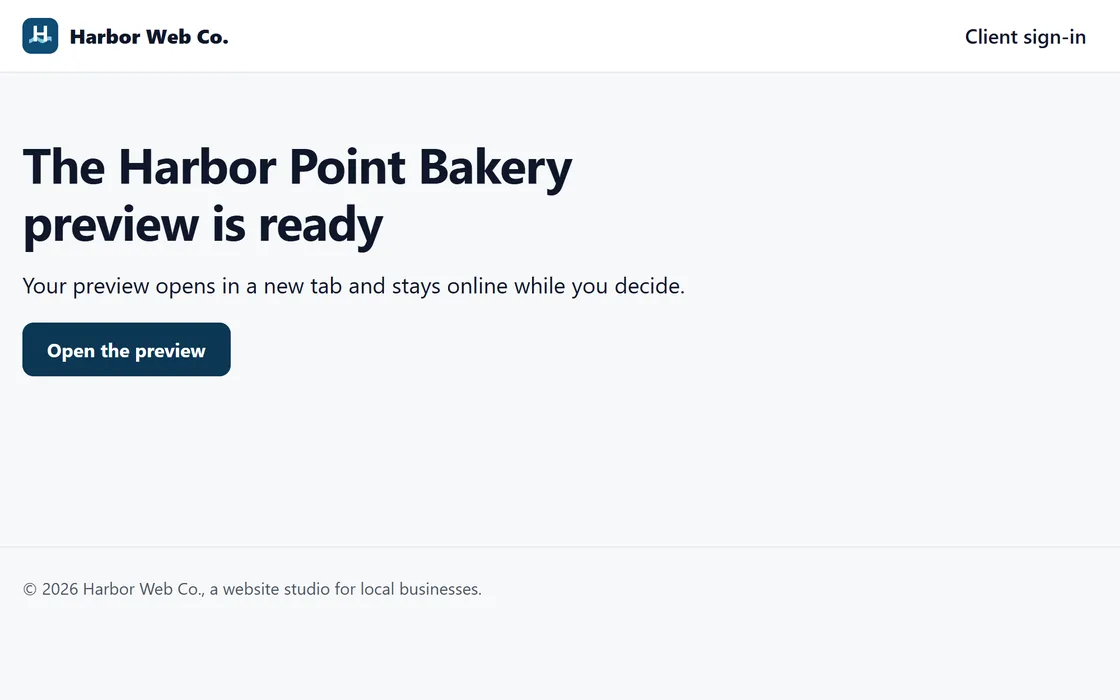
Step 1 of 3
They open the preview
Your client opens the preview link on your storefront and sees the whole site, on a laptop or a phone.
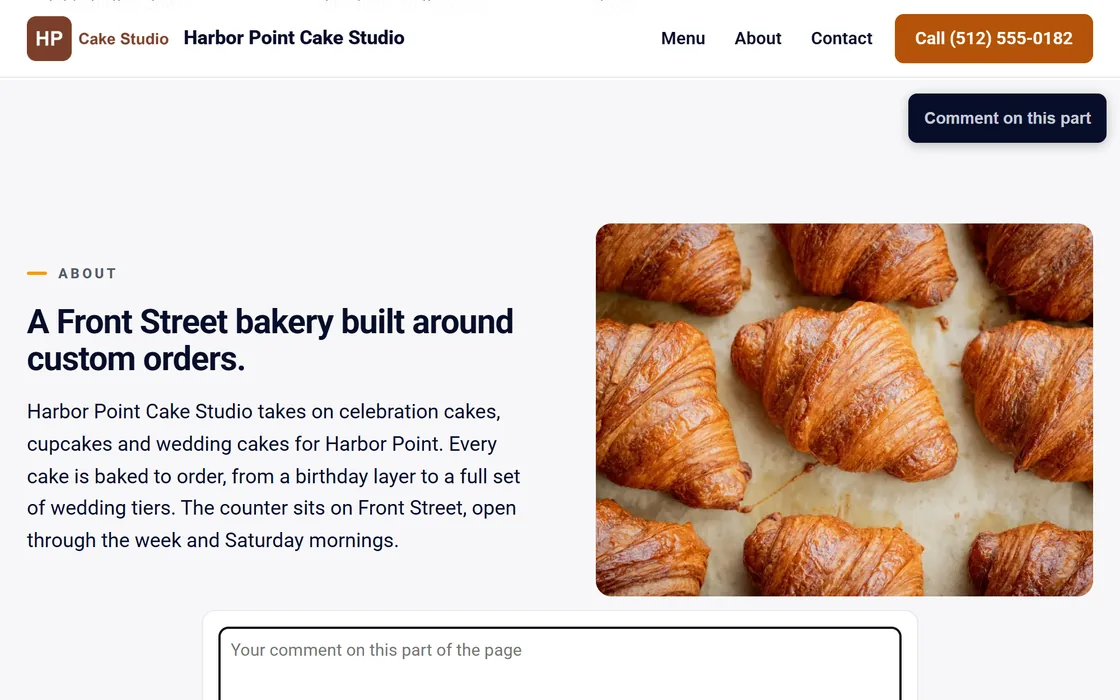
Step 2 of 3
They comment on it
Your client pins a comment to any part of the page, and you mark it done once the change is made.
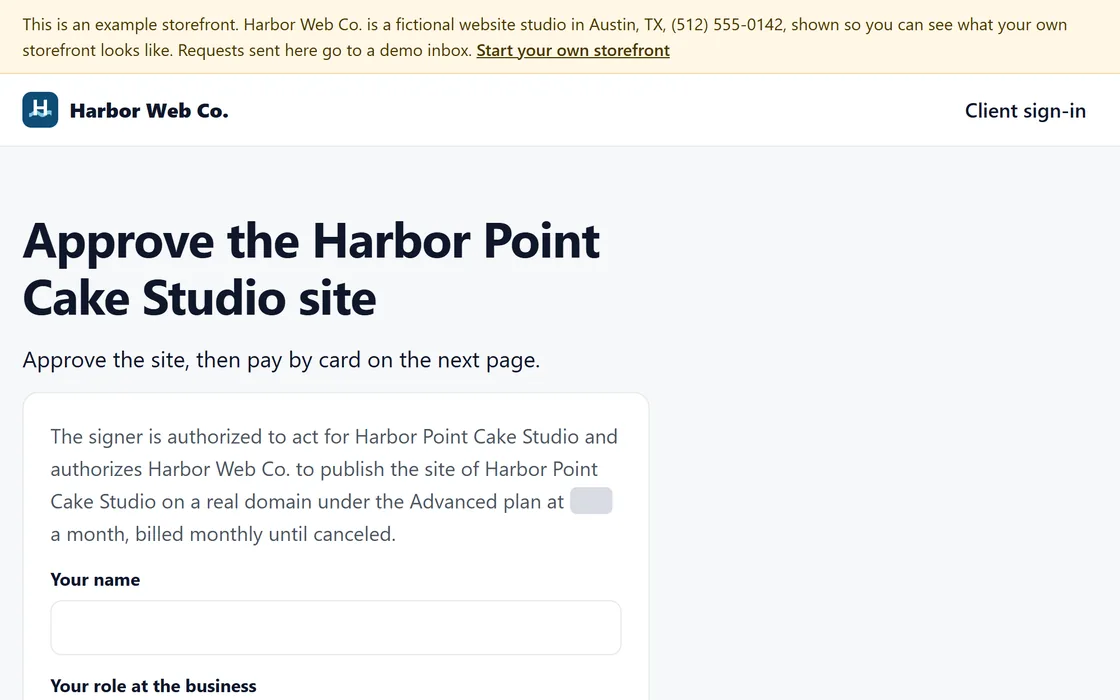
Step 3 of 3
They approve and pay
Your client approves the site with their name and role, then pays by card at your price.
Every comment reaches your dashboard and your inbox, and each approval is recorded with its date and time. See how approval works.
Screens and businesses shown are fictional.
Where your name appears
- Your storefront, with your logo and your prices
- Every preview and the page that shares it
- The approval page and the checkout
- The charge on your client's card statement
- Your client's login
- Every reminder, notice and monthly report your client receives
Your clients meet your brand at every step, and the address of your storefront carries your name.
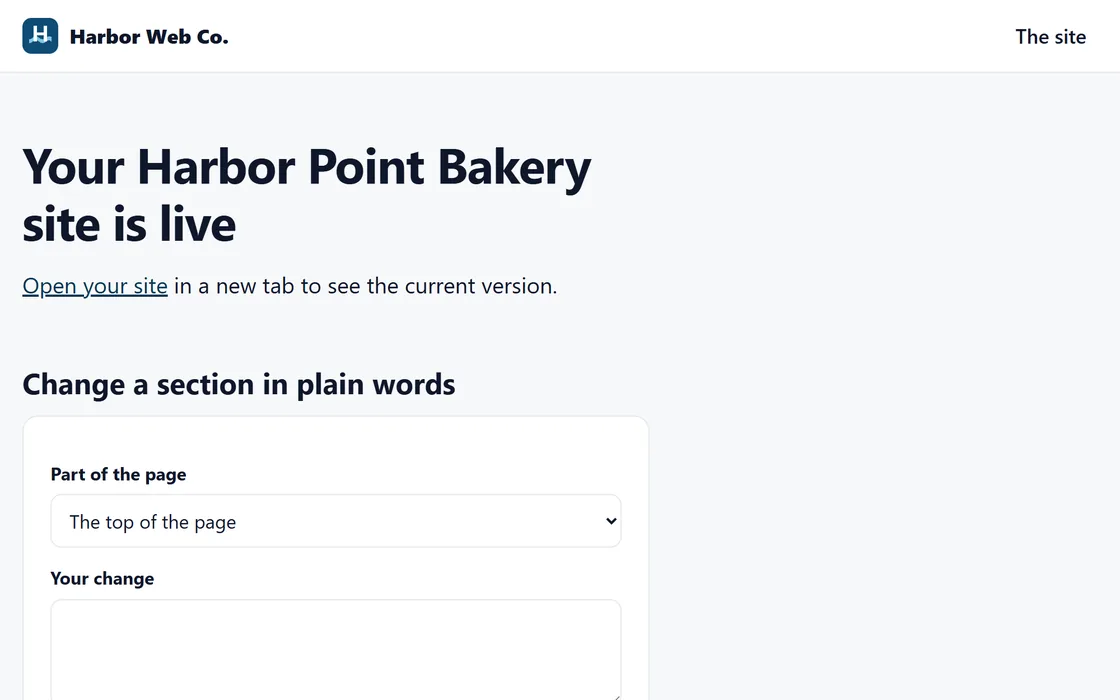
Set up your storefront
- Sign in with a link sent to your email, with no password to remember.
- Name your storefront and add your logo.
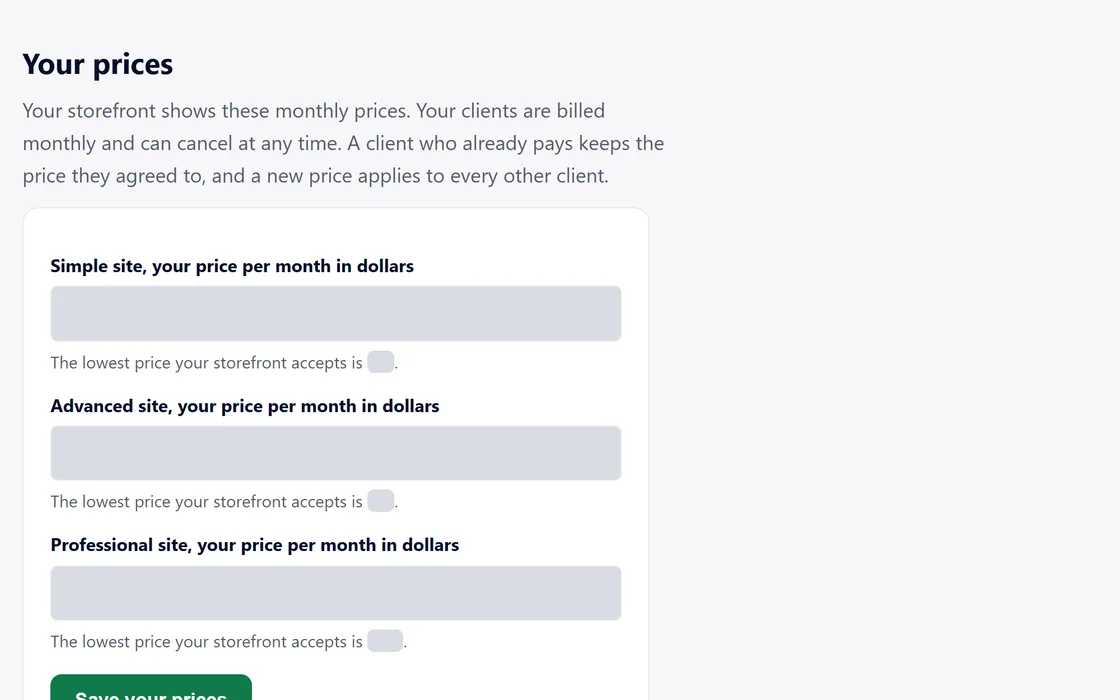
- Set your monthly price for each level of site.
- Share your storefront link with the businesses you meet.
The setup guide walks through each screen.
Questions
Whose name do my clients see?
Yours. Your name and logo are on your storefront, every preview, the checkout and every email your clients receive.
Can I change my prices later?
Yes, at any time in your settings. A client who already pays keeps the price they agreed to, and the new price applies to every other client.
What does my client see before paying?
The whole site as a preview. Your client comments on any part of it, then approves it with their name and role before the card form opens.
Whose name is on my client's card statement?
Yours. You are the merchant on every payment, so the charge carries your business name.
Can my client ask for changes after paying?
Yes. Your client signs in on your storefront to change text and photos, or describes a change and our AI rewrites the section.
What is my storefront's address?
Your storefront's name followed by mysiteslive.com, an address that carries your name. Put it on your cards, your profiles and your emails.