Connect your mailbox
Outreach email leaves from your own mailbox, with your legal name and mailing address in the footer.
Steps
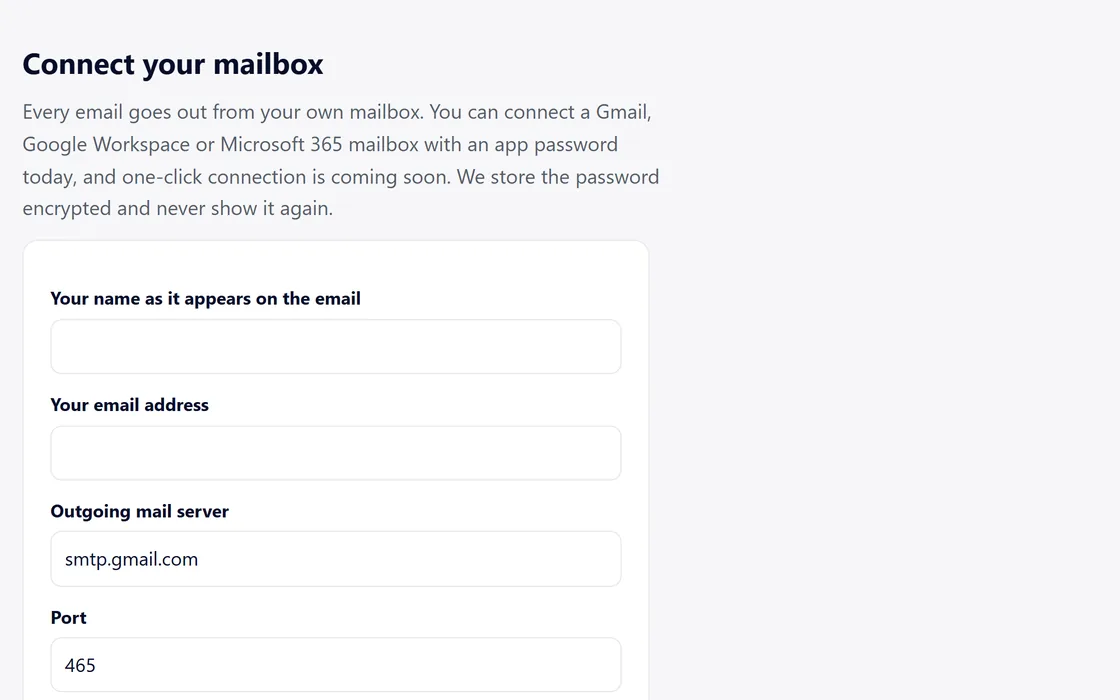
- Open Outreach from your dashboard menu.
- Enter your name as it appears on the email, your email address, the outgoing mail server and port, and the incoming mail server for replies.
- Add an app password from your mail provider. Your regular password does not work here.
- Add your legal name, mailing address and country for the footer, and accept the outreach terms.
- We check the connection within 5 minutes and mark your mailbox as verified.
We store your app password encrypted, and no page shows it again. We read only replies to the emails you sent. Nothing else in your inbox is read or stored.
Questions
Where do I make an app password?
In your mail account's security settings. <a href="https://support.google.com/accounts/answer/185833">Google explains it here</a>, and <a href="https://support.microsoft.com/en-us/account-billing/how-to-get-and-use-app-passwords-5896ed9b-4263-e681-128a-a6f2979a7944">Microsoft explains it here</a>.
The mailbox is not verified.
Check that you used an app password, not your regular password, and that the servers and port match your provider's settings. Then save again.
What do you read in my inbox?
We read only replies to the emails you sent. Nothing else in your inbox is read or stored.
What comes next?
Add businesses to outreach, and review the drafts before anything is sent.
Related guides
Screens and businesses shown are fictional.
If you are still stuck, write to us, or see all 20 guides.